Hexo-Fluid下的live2d 3.x看板娘实现
Introduction
I always felt that my blog was too plain, so I wanted to add a virtual waifu or something similar. When I tried to use HEXO-live2d, I found out that it only supports the Cubism2 version of Live2D, and the same goes for others (it seems to be due to commercial copyright issues according to the Issues I checked). I found this SDK on the official website and decided to give it a try by ctrl+c ctrl+v, and surprisingly, it worked!
{/* truncate */}
Preparation
-
TypeScript
npm install -g typescript
Getting Started with Customization
Test Steps
Navigate to the \CubismSdkForWeb-x\Samples\TypeScript\Demo folder and run the following commands in the command line:
npm installnpm run buildThe official recommendation is to use Visual Studio. The commands may have slight differences, for details please refer to Github.
This process will compile and generate a bundle.js in the \dist\ folder, which will be used to load the Live2D model in the index.html.
Unless specified otherwise, all following paths are assumed to be inside the \CubismSdkForWeb-x\Samples\TypeScript\Demo folder.
Importing Your Own Model
Open the \src\lappdefine.ts file and locate the following code:
export const ResourcesPath = "../../Resources/";
// Model definition---------------------------------------------// Array of directories where the models are located// Ensure directory names match model3.json namesexport const ModelDir: string[] = ["Haru", "Hiyori", "Mark", "Natori", "Rice"];
Here, the locations of various Live2D models are defined. To import your model, place it in the ResourcesPath mentioned in the code, which by default is \CubismSdkForWeb-4-r.3\Samples\Resources\, and add the model name to the ModelDir array.
It is important to rename the .model3.json file to match the folder name.
For example, if you place a Nova model in the resources folder with the directory structure as follows:
|├─Nova│ │ 86.cdi3.json│ │ 86.moc3│ │ Nova.model3.json│ │ 86.physics3.json│ │ cc_86.cfg│ ││ └─86.4096│ texture_00.png├─Other_ModelsRename 86.model3.json to Nova.model3.json. Your directory structure should now look like this:
|├─Nova│ │ 86.cdi3.json│ │ 86.moc3│ │ Nova.model3.json│ │ 86.physics3.json│ │ cc_86.cfg│ ││ └─86.4096│ texture_00.png├─Other_ModelsEnsure that the ModelDir array in your \src\lappdefine.ts file also includes "Nova".
Recompile and run the local server. You should now see the imported model in action.
You can use third-party tools like Visual Studio or WebStorm to open the local server, or run
npm run startin the command line and open the provided link to preview theDemofolder.
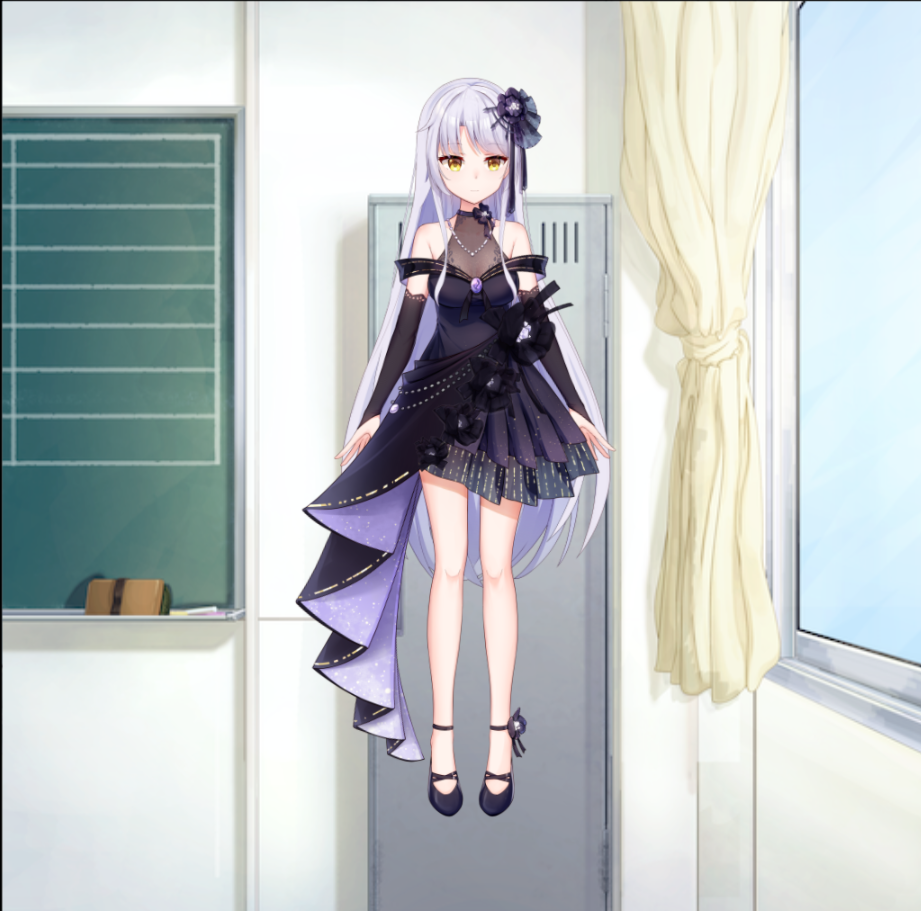
Source from oil man’s dedication
Modifying Model Movement to Follow Mouse
By default, the Live2D waifu in the SDK only follows when the left/right mouse button is pressed. We will modify it to follow the mouse movement.
Open the \src\lappdelegate.ts file, find the following code:
const supportTouch: boolean = "ontouchend" in canvas;
if (supportTouch) {  // Touch-related callback function registration  canvas.ontouchstart = onTouchBegan;  canvas.ontouchmove = onTouchMoved;  canvas.ontouchend = onTouchEnded;  canvas.ontouchcancel = onTouchCancel;} else {  // Mouse-related callback function registration  canvas.onmousedown = onClickBegan;  canvas.onmousemove = onMouseMoved;  canvas.onmouseup = onClickEnded;}
Comment out and add the mouse movement event:
document.addEventListener("mousemove", function (e) { const rect = canvas.getBoundingClientRect(); const posX: number = e.clientX - rect.left; const posY: number = e.clientY - rect.top; LAppDelegate.getInstance()._view.onTouchesMoved(posX, posY);});// Essentially a copy of onMouseMoved()You may notice that clicking actions no longer work. Hence, add back the onmouseup event:
Add below the previous code:
canvas.onmouseup = onClickEnded;
// Added an event to reset position when mouse is out of the browser for aestheticsdocument.addEventListener("mouseout", function (e) {  const live2DManager: LAppLive2DManager = LAppLive2DManager.getInstance();  live2DManager.onDrag(0.0, 0.0);});
After testing, the functionality should be restored.
Drawing on Canvas
To remove the background from the canvas, open \src\lappview.ts and comment out the image creation method:
public initializeSprite(): void {    const width: number = canvas.width;    const height: number = canvas.height;
    const textureManager = LAppDelegate.getInstance().getTextureManager();    const resourcesPath = LAppDefine.ResourcesPath;
    /*let imageName = '';
    // Initialize background image    imageName = LAppDefine.BackImageName;
    // Asynchronous, so create a callback function    const initBackGroundTexture = (textureInfo: TextureInfo): void => {      const x: number = width * 0.5;      const y: number = height * 0.5;
      const fwidth = textureInfo.width * 2.0;      const fheight = height * 0.95;      this._back = new LAppSprite(x, y, fwidth, fheight, textureInfo.id);    };
    textureManager.createTextureFromPngFile(      resourcesPath + imageName,      false,      initBackGroundTexture    );
    // Initialize gear image    imageName = LAppDefine.GearImageName;    const initGearTexture = (textureInfo: TextureInfo): void => {      const x = width - textureInfo.width * 0.5;      const y = height - textureInfo.height * 0.5;      const fwidth = textureInfo.width;      const fheight = textureInfo.height;      this._gear = new LAppSprite(x, y, fwidth, fheight, textureInfo.id);    };
    textureManager.createTextureFromPngFile(      resourcesPath + imageName,      false,      initGearTexture    );*/
  /*if (this._gear.isHit(pointX, pointY)) {      live2DManager.nextScene();    }*/
For a transparent background, open \src\lappdelegate.ts and set the background alpha to 0:
  public run(): void {    // Main loop    const loop = (): void => {      // Check for instance existence      if (s_instance == null) {        return;      }
      // Update time      LAppPal.updateTime();
      // Initialize the screen      gl.clearColor(0.0, 0.0, 0.0, 0.0); // Change alpha from 1.0 to 0.0
Next is a customization of the Live2D model layout, where the Live2D 2.x version’s Live2D project was directly reused.
The
js/live2d.jsin this project is thebundle.jsin thedistdirectory, so some modifications should be made to thedemo.html.
Final Modifications
Open \src\lappdelegate.ts and adjust the canvas in the initialize() method:
public initialize(): boolean {    // Create the canvas    // canvas = document.createElement('canvas');    canvas = <HTMLCanvasElement>document.getElementById('live2d'); // should correspond to the canvas id in custom_html    if (LAppDefine.CanvasSize === 'auto') {      this._resizeCanvas();    } else {      // canvas.width = LAppDefine.CanvasSize.width;      // canvas.height = LAppDefine.CanvasSize.height;    }...  // Add the canvas to the DOM    //document.body.appendChild(canvas);
  private _resizeCanvas(): void {    // canvas.width = window.innerWidth;    // canvas.height = window.innerHeight;  }
Move the cloned live2d folder from Live2D to the source folder of Hexo, and place the previously compiled \dist\bundle.js and \CubismSdkForWeb-4-r.3\Core\live2dcubismcore.js into the source\live2d\js\ folder. Next, locate the _config.fluid.yml file in the root directory of Hexo and find:
# Custom HTML content in the <head> sectioncustom_head:Add the following line from demo.html to it:
<link rel="stylesheet" href="/live2d/css/live2d.css" />Similarly, under the custom_html line, add the following code:
<div id="landlord">  <div class="message" style="opacity:0"></div>  <canvas id="live2d" width="280" height="250" class="live2d"></canvas>  <!-- If you modify the id here, make sure to change the id in the JS as well -->  <div class="hide-button">Hide</div></div><script  type="text/javascript"  src="https://cdn.bootcss.com/jquery/2.2.4/jquery.min.js"></script><script type="text/javascript">  var message_Path = "/live2d/";  var home_Path = "https://haremu.com/"; // You can modify it to your homepage link or remove it</script><!-- Change live2d.js to bundle.js --><script type="text/javascript" src="./live2d/js/bundle.js"></script><!-- Include live2d core --><script type="text/javascript" src="./live2d/js/ive2dcubismcore.js"></script>
<script type="text/javascript" src="/live2d/js/message.js"></script>
Finally, using the command hexo clean && hexo g, you should now be able to see your Live2D character on the blog.
Other
How to Modify Size and Center Point
After adding the waifu, you might notice it appears very small. To adjust the size, open the \CubismSdkForWeb-4-r.3\Framework\src\math\cubismmodelmatrix.ts file and make changes:
/** * Set the width * * @param w Width */public setWidth(w: number): void {  const scaleX: number = w / this._width;  const scaleY: number = scaleX;  this.scale(scaleX*2, scaleY*2); // Multiply as needed to enlarge}
/** * Set the height * @param h Height */public setHeight(h: number): void {  const scaleX: number = h / this._height;  const scaleY: number = scaleX;  this.scale(scaleX*2, scaleY*2); // Multiply as needed to enlarge}
Recompile bundle.js, place it in the source\live2d\js\ folder, and redeploy Hexo to make it effective.
Epilogue
Simple modifications may not make the waifu perfect. You may encounter issues like incomplete model display, lack of interactivity, or weird mouse following. The solution is to customize the source code as mentioned above. Due to limited resources, it’s challenging to cover every aspect comprehensively (after all, the waifu has been deployed for several months when writing this blog).
You can study the project already done by the master to find solutions to most of the aforementioned problems, as they have added many custom methods to enhance the waifu experience, even achieving plug-and-play operation (they even have blogs and videos, so compared to my detailed explanation, I wonder where I’m going with this detailed blogwhere is the significance of spending so much time on writing this blog). You can visit the star-gazing sun to find out more.
The purpose of human existence is to constantly reinvent the wheel!
{/* AI */}