利用 Hyper-V 创建 WSL2 桥接网络并支持 ipv6
I don’t know what happened, I used to be able to access services in WSL2 directly from the host using localhost:port, but suddenly it doesn’t work today. Taking this opportunity, I’ll create a virtual network card based on the documentation I read recently to set up a WSL2 bridge, which will not only support IPv6 but also allow direct access to my WSL2 services in the local network without the need for port forwarding. Since my WSL2 is not sandboxed anyway, I’m not too concerned about security xD.
{/* truncate */}
Environment
WSL version: 1.2.5.0Kernel version: 5.15.90.1WSLg version: 1.0.51MSRDC version: 1.2.3770Direct3D version: 1.608.2-61064218DXCore version: 10.0.25131.1002-220531-1700.rs-onecore-base2-hypWindows version: 10.0.22621.1702I don’t know why the kernel still shows 5.15.90, even though it has been updated to 6.1.9 before. Anyway, make sure your WSL version supports the vmSwitch option.
Create an External Virtual Switch
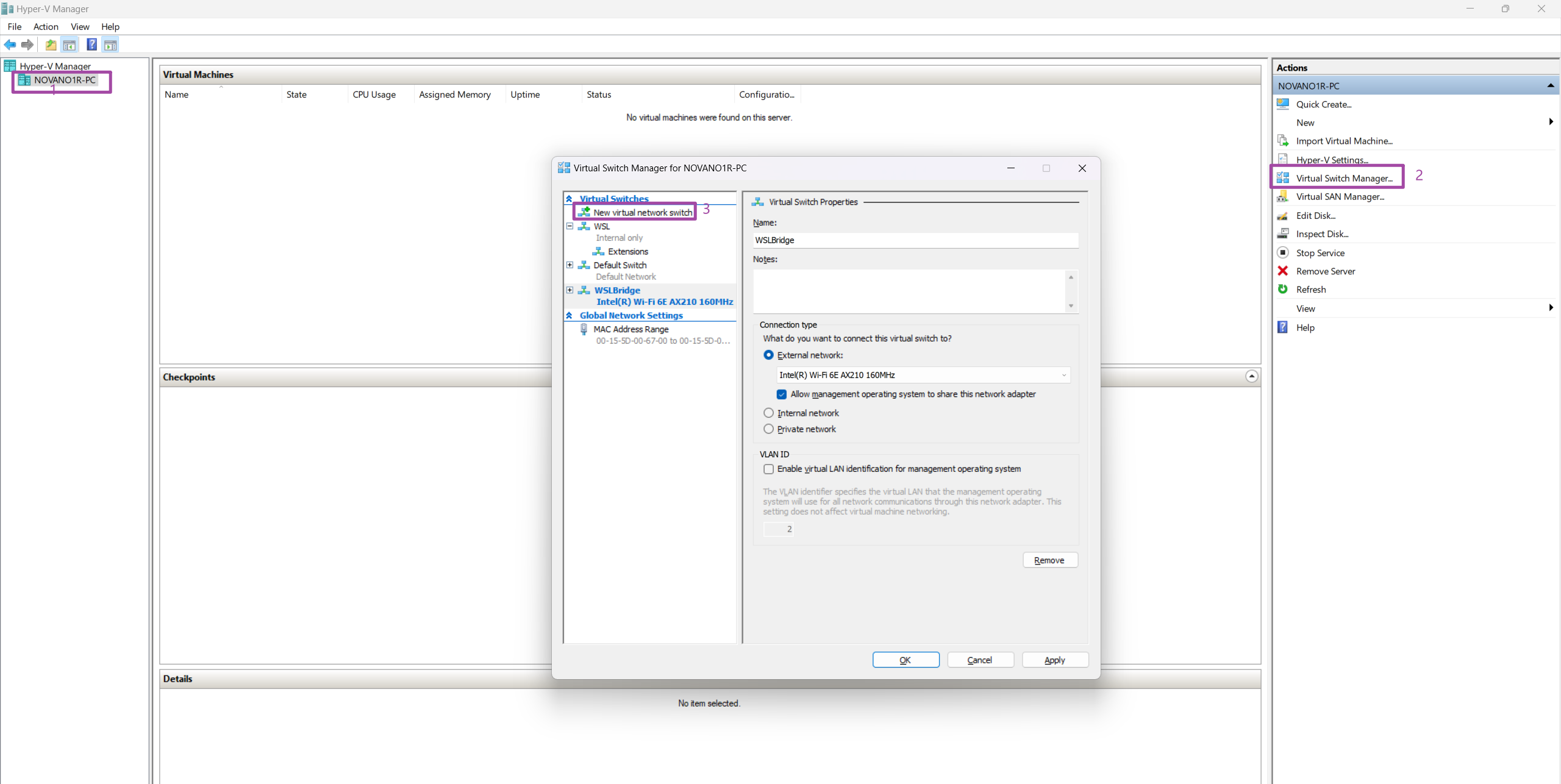
Press win+r and enter virtmgmt.msc to open the Hyper-V Manager, Microsoft really needs to work on these abbreviations.
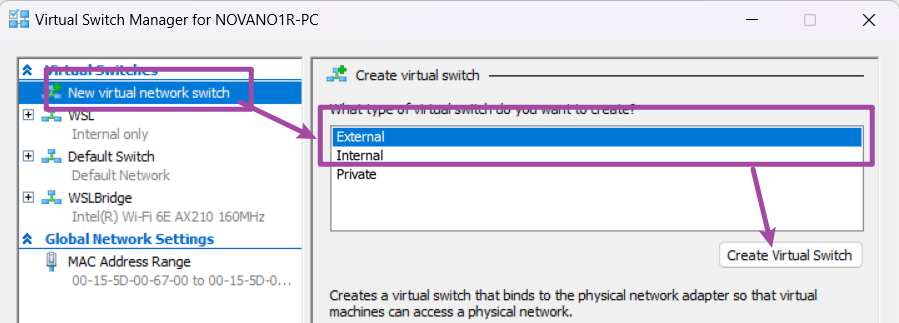
Follow these steps to create an external virtual switch:
Modify WSL2 Configuration File
I usually use the configuration file under %USERPROFILE%, but you can choose your own location. Here is what I do:

Add the following lines under [wsl2] in the .wslconfig file:
[wsl2]# Your ConfigsnetworkingMode=bridgedvmSwitch=WSLBridge # Replace with the name of the external switch you just createdipv6=trueRestart WSL
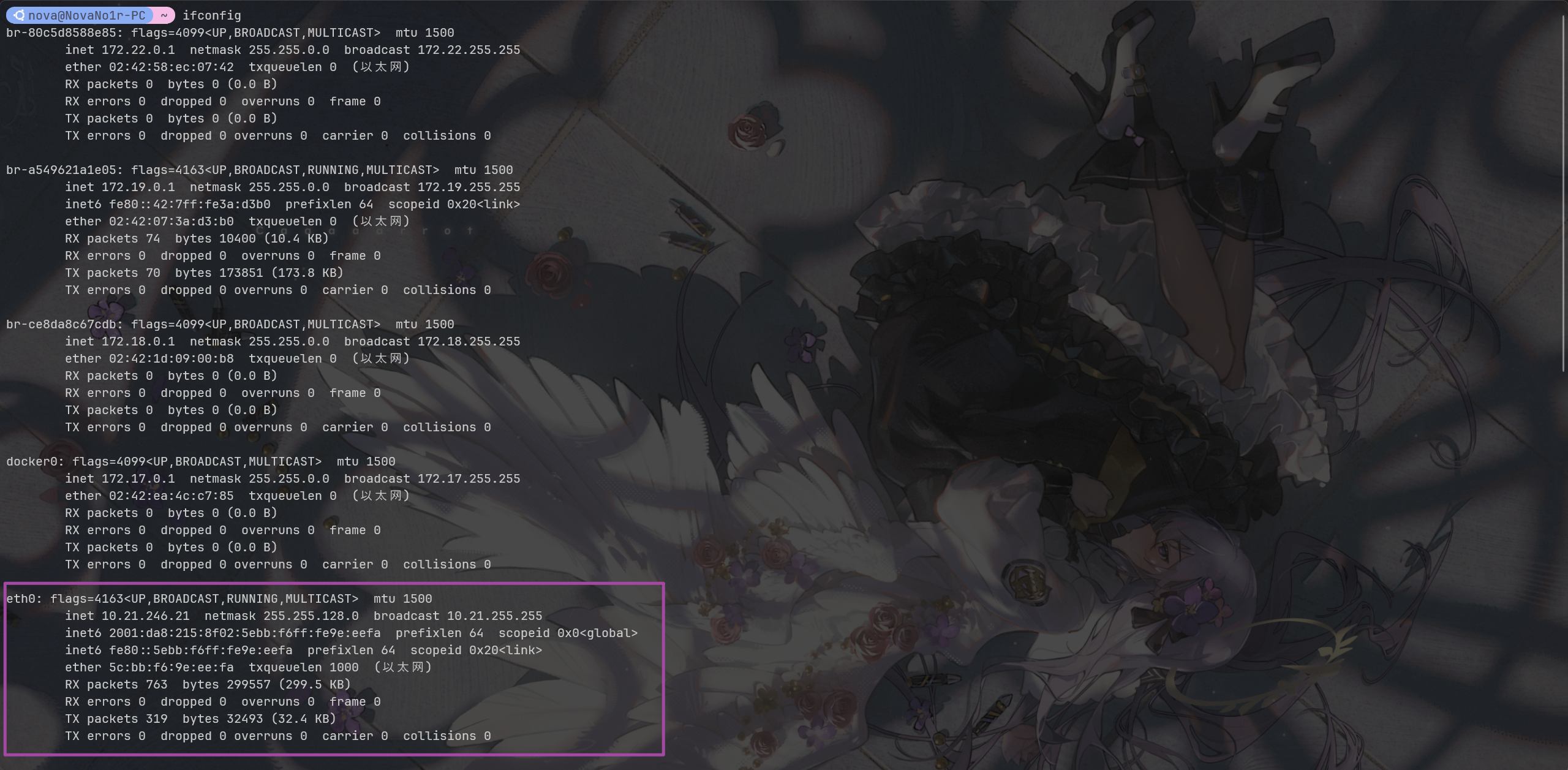
wsl --shutdown && wslIf everything goes well, you should now have WSL2 with a bridged network.
Some Issues
After making this setup, the host won’t be able to communicate with WSL2 directly using localhost:port anymore, which may be a bit inconvenient.
Moreover, if WSL2 gets IP via DHCP, it could be troublesome if the IP changes.
Let’s give it a try for now.
{/* AI */}